Trainysta for Managers and Instructors
What you can do in the club's booking system, explained for the people who use it every day: the Owner/Manager and the Instructors. It is not a list of clicks on the screen: it explains the available actions, who can perform them and why they work the way they do.
Roles
The system recognises four levels, one inside the other: whoever has a level automatically has everything from the levels below. The member who books is not one of them: they have a separate, simpler access, designed only for the app.
| Level | Who they are, in practice | What they see in addition to the level below |
|---|---|---|
| User | Front office/reception | Day-to-day operations: bookings, payments, schedule |
| Instructor | Whoever gives lessons and courses | Bookings of all the instructors (not just their own), approval of membership applications, medical certificates, WhatsApp requests |
| Manager | Club owner | Configuration (services, courts, member categories), sales, payments, Stripe |
| Broker | Multi-club manager (platform) | Several clubs together, notifications, general settings — outside the scope of this guide |
An account with only the level User (pure front office) does not see the "Requests" tab in the app: no membership applications, no requests coming from WhatsApp. If someone in the front office has to handle them, they must be given at least the level Instructor — even if they do not teach. There is no separate "Front office" level.
In this guide every action has a label next to it: Manager + Instructor when both can do it, Manager only when it is reserved for the Owner, Member side when the customer does it and the staff only needs it to assist them.
Bookings
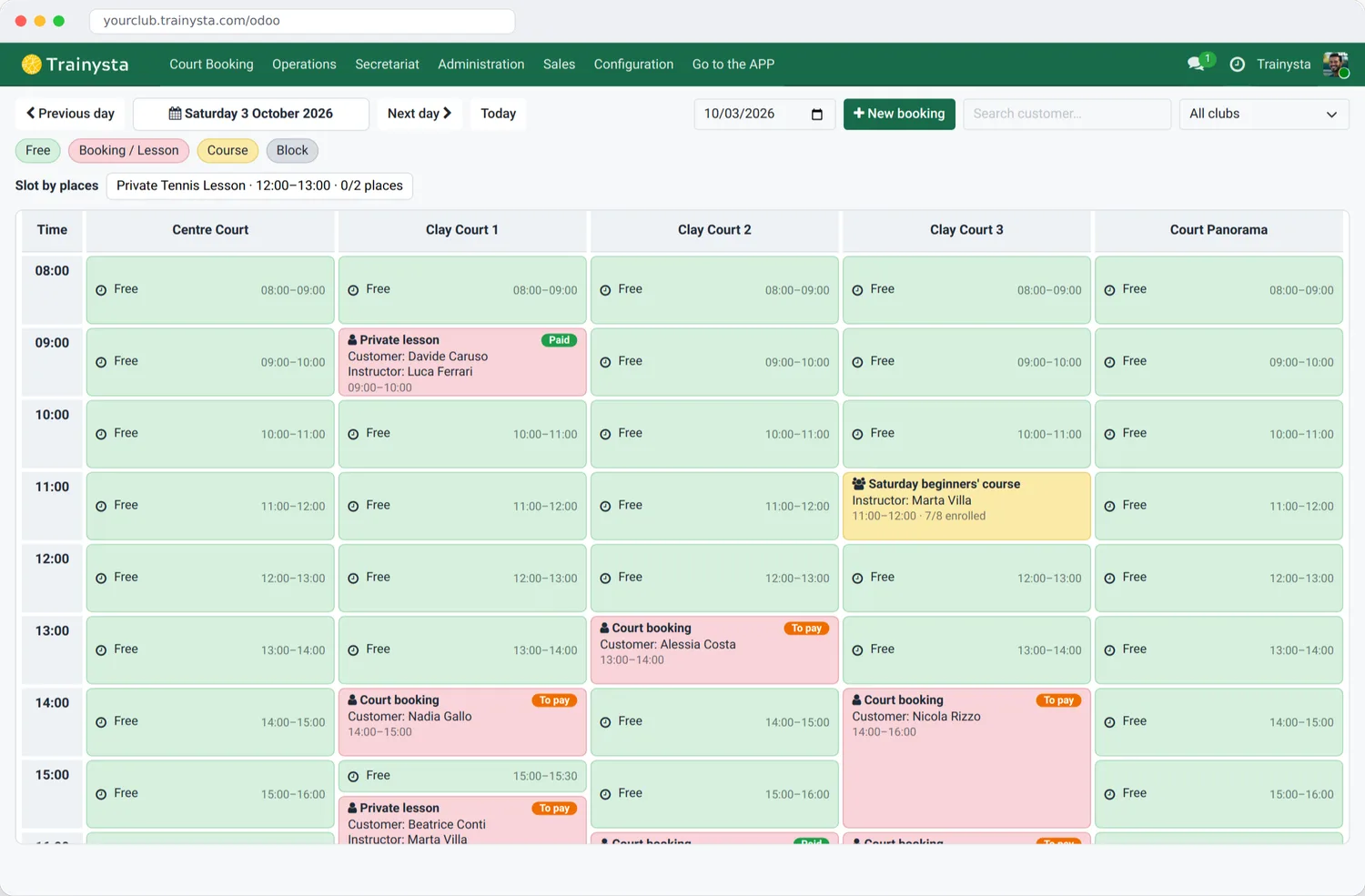
The heart of the daily work: courts, lessons, courses. You can work both from the app (the same one members use, with more functions unlocked) and from the back office, for the overall view of the week.
In the app
- Manager + InstructorCreate a booking, also on behalf of a customer different from the payer.
- Manager + InstructorConfirm without collecting payment: the booking becomes valid without going through online payment (e.g. it is paid at the club).
- Manager + InstructorRecord a cash payment and mark the booking as paid.
- Manager + InstructorMove the date/time of an existing booking, cancel it o reactivate it if it was cancelled by mistake.
- Manager + InstructorMark a past booking as completed, in the "To complete" list.
- Manager + InstructorAdd or remove participants to a booking, in whatever state it is.
- Manager + InstructorEnable a medical certificate waiver, for a single participant or for the whole booking, when the certificate is missing or expired.
- Manager + InstructorReverse a payment already collected (cash, wallet, voucher; for card payments the refund of the money must in any case be done separately, through the payment provider).
- Member sideMembers book on their own, choose how to pay (card, wallet, lesson pack, or cash/pay-later if the club allows it), and see their active bookings and history.
By default the Instructor sees only their own bookings; the Manager and the front office see everything and can filter by service or instructor.
In the Odoo back office
For the overall view, under My Day:
- Manager + InstructorCourt Booking — the day's grid, court by court and hour by hour: it is the first place to look to understand how the day is going.
- Manager + InstructorCourses, Bookings, Slots — the same information as in the app, in table view, handy for filtering and exporting.
- Manager + InstructorVoucher Packs — members' prepaid lesson packs, and how many credits remain.
- Manager + InstructorResource Blocks — close a court for maintenance or an event, so it cannot be booked in that time slot.
Related configuration
- Manager onlyServices — the catalogue of what can be booked (court, lesson, course), with duration and price.
- Manager onlyResources — Spaces (the physical courts), Instructors, Equipment and their categories: this is where each one's weekly availability hours are defined.
The capacity of a court must stay at 1: it has already happened that a higher value let the same court be booked twice in the same hour without anyone noticing.
Members
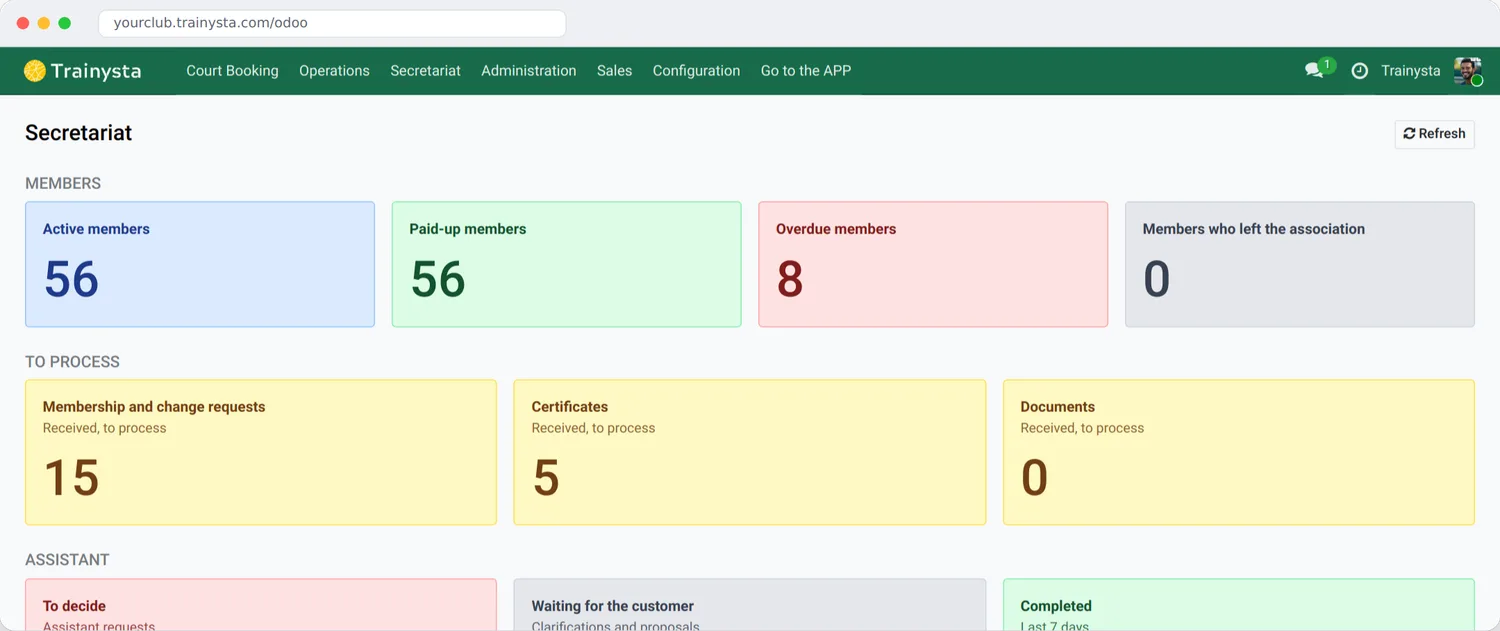
Everything about joining the association: who can do it, for whom, and how it becomes a paid membership card.
Membership applications
- Member sideThe customer applies for themselves, or for a minor child managed from their account. A spouse and any other adult must sign up with their own account: the system automatically rejects an application made for another adult.
- Manager + InstructorApprove, reject or cancel a membership or data-change application, from the "Members & Front office" dashboard or from the app.
- Manager + InstructorFor an application on behalf of a minor, the detail shows who made the request (the parent/guardian who manages the account).
The category (Junior, Adult, Senior) is not chosen: it is calculated automatically from the date of birth, at the age the member has when buying the card. A member who turns 60 can buy the Senior card the following year without applying again; having applied once is enough.
Medical certificates and documents
- Manager + InstructorReview the history of medical certificates uploaded and their validity.
- Manager + InstructorApprove documents and waivers uploaded by the member.
- Manager onlyGenerate a membership manually from the member register, even outside the normal rule (e.g. for a discount or a special case): the member's history records that it was a manual choice.
Member categories
Manager only — in Club Configuration you define the age bands (today: Junior up to 17, Adult 18-59, Senior 60 and over) and which card/price each one corresponds to. Changing a threshold here applies immediately to all new purchases.
The member's side, in brief
Member side — useful for answering the most common questions: the member applies from their profile in the app, uploads an identity document and accepts the club rules; once approved, they buy their own card from the app's Shop; for a minor child, the parent applies and buys from their own account.
The rules text shown to the member when applying is still placeholder text: it must be replaced with the club's real rules before opening real registrations.
Payments
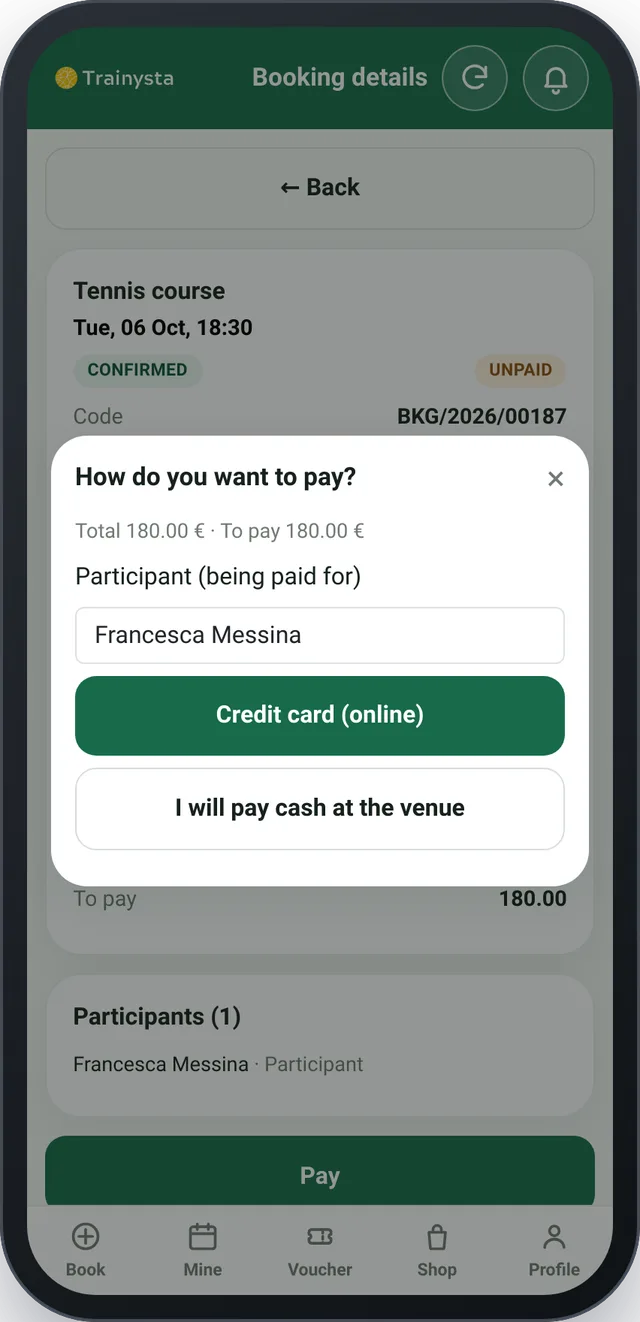
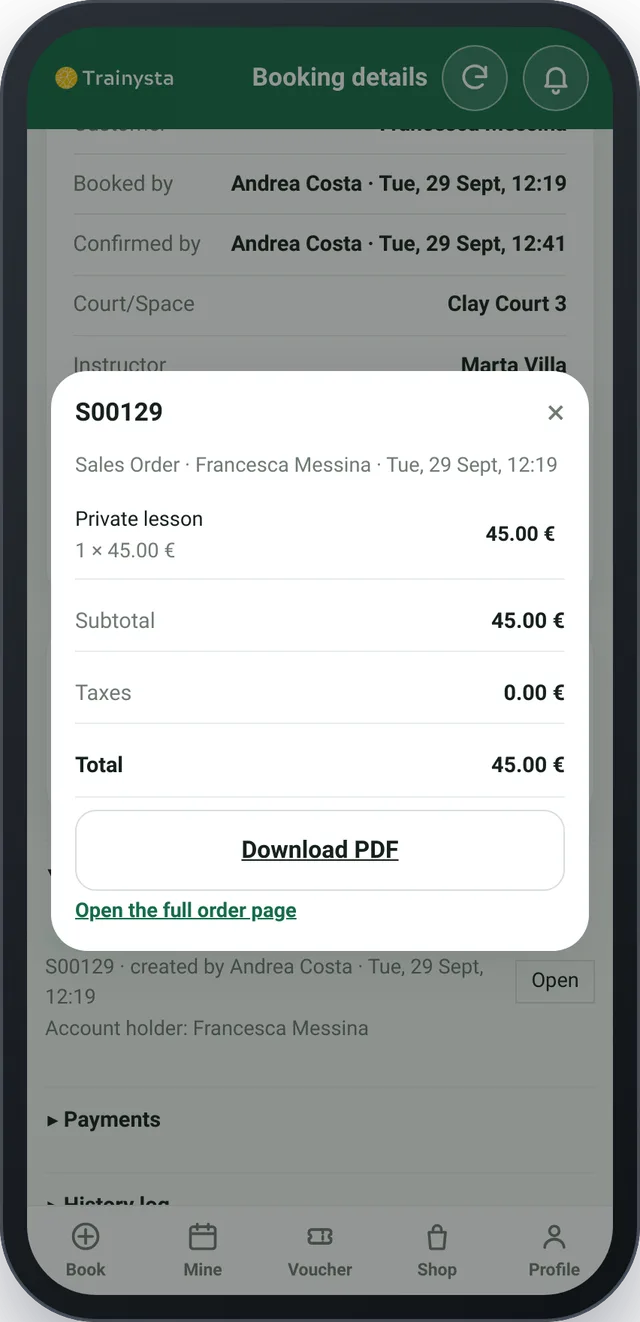
How a member can pay
- Member sideOnline credit card, e-wallet (eWallet) if they have credit, prepaid lesson pack.
- Member sideCash at the club, or "pay later" — only if the club has enabled them for that member.
What the staff does
- Manager + InstructorRecord a cash payment and reverse a payment if needed (see also the Bookings chapter).
- Manager + InstructorReview the payments report: what has been collected, with what and by whom.
- Manager onlyView and manage payment transactions in "Sales".
- Manager onlyConfigure the club's Stripe keys, from Club Configuration — there is no need to enter Odoo's technical settings.
Buying a membership card online can be paid by card only: cash or other methods are not allowed for cards, unlike bookings.
WhatsApp assistant
The club's WhatsApp number answers on its own to anyone writing for the first time, without staff intervention, but it does not book or change anything on behalf of the customer: the booking always stays in the app.
What it does with a stranger
- AutomaticGives general information: opening hours, aggregate court availability (never other customers' names), rates, courses.
- AutomaticIf the person wants to book, it replies to use the app and how to register.
- AutomaticCollects a request for the staff when a person is needed: a trial lesson, a playing partner, a callback, or an administrative matter.
| Type | Example |
|---|---|
| Trial/registration | Someone wants to try a lesson or sign up |
| Playing partner | Looking for someone to play with |
| Callback | Asks to be called back by the staff |
| Operational request | A certificate, a payment after a lesson |
| Generic | Does not fit the other categories |
How a request is decided
- Manager + InstructorFrom the "Requests" tab of the app: Confirm and execute (the action really runs in the back office), Reject with a note, or Pass to the front office if a person is needed to handle it.
- Manager + InstructorMessages the assistant does not understand well arrive as flagged, to be read by hand.
Automatic notifications
Besides the front desk for strangers, the system can automatically send emails and WhatsApp messages to its own members, instructors and the Manager.
| For whom | When |
|---|---|
| Customer | Confirmation, reminder, change or cancellation of a booking; welcome message to a new member |
| Instructor | New booking, change, cancellation; the day's schedule |
| Manager | Daily summary; general alerts |
All notification rules are switched off by default. For the WhatsApp channel you also need the individual customer's explicit consent, the linked number and (recommended) a trial in "test mode" that writes to the send log without actually sending anything, before moving to real sending.
Activating a new club
Manager only — this is the path a new club follows to get its own Trainysta installation, completely separate from the others. It is not a daily operation: it happens once, at activation.
- Registration — the Owner fills in a public form with the club name, email and password.
- Email confirmation — they receive a confirmation link to click.
- Automatic activation — the system creates a new, independent copy of the platform for that club on its own, ready to use.
- Status page — during activation a page shows the progress, until the instance is ready and you can log in with the credentials chosen in the first step.
Glossary
- Reserved / Confirmed
- A reserved booking is pending (usually payment); confirmed is final.
- Approved member
- Has an approved membership application: can buy their own card.
- Active member
- Has a paid card that is valid today, not just approved in the past.
- Voucher pack (lesson pack)
- A package of prepaid lessons: each lesson used deducts one credit.
- Wallet (eWallet)
- Customer's prepaid credit, usable for bookings and purchases.
- Member category
- The band (Junior/Adult/Senior) that decides which card a member can buy, based on age.
- Medical certificate waiver
- Exceptional permission that allows playing without a valid medical certificate on file.
- Reversal
- Accounting cancellation of a payment already recorded in the system.